

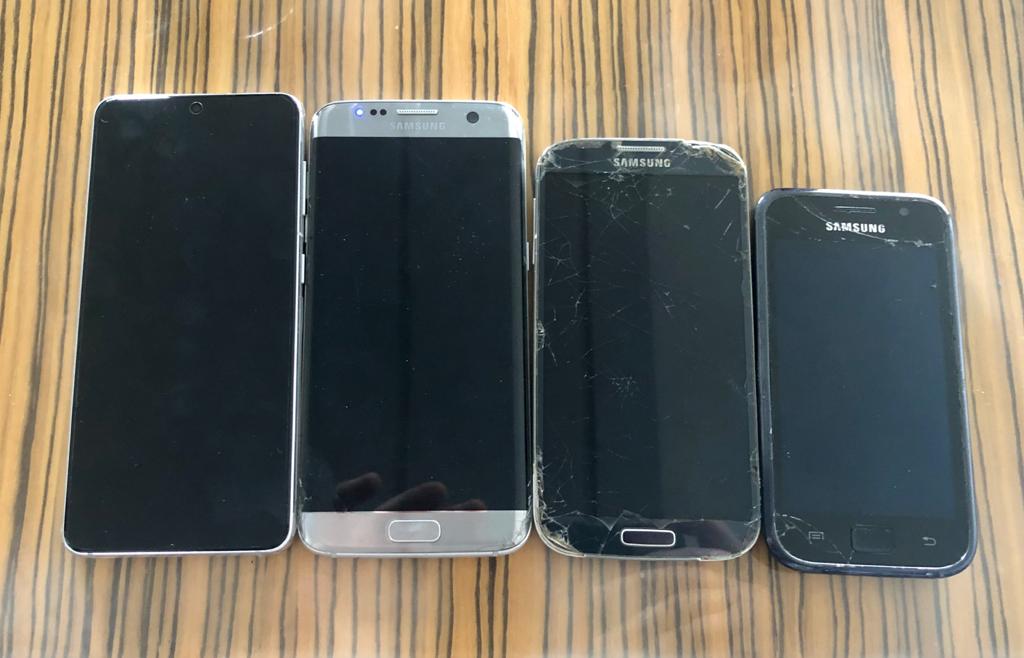
If you still use an older Samsung phone, you already know the problem: official update servers move on, support pages stop listing your model, and finding the right firmware starts to feel like guesswork. That is where samfirm comes in. It is a lightweight Windows tool that downloads official Samsung firmware directly from Samsung’s own servers, so even owners of ageing Galaxy phones can get a clean, untouched firmware file for their exact model.
Why Older Samsung Phones Still Need Firmware
Older phones do not stop being useful just because they stop receiving major Android upgrades. A fresh firmware install can fix boot loops, remove persistent software glitches, restore a phone that will not start properly, or return a modified device to stock condition before you pass it on. For models that no longer appear in over-the-air updates, a manual firmware download is often the only way to revive or stabilise the device. The catch is that the firmware must match the phone exactly; the wrong file can leave the device unusable, which is why the source and the match matter more than speed.
What Samfirm Actually Does
Samfirm works by checking Samsung’s firmware servers for the file that belongs to a given model number and region code, then downloading it in decrypted form, ready to flash with Samsung’s Odin tool. It does not host firmware itself and it does not modify the files it downloads, which is an important distinction: you are getting the same official package Samsung would have delivered over the air, rather than a repacked copy from a random mirror. The tool asks for just two details — the model number and the region code — and it handles the rest, including decrypting the package so it is ready to use. For older models, this matters because community mirrors often disappear, while Samsung’s servers still hold many legacy builds.
Matching the Right Firmware to Your Model
Before you download anything, confirm your phone’s exact model number, usually found in Settings under About phone, and printed on the label beneath the battery or on the SIM tray of older devices. A Galaxy S8, for example, has several regional variants, and firmware built for one variant will not work safely on another. The region code, often called the CSC, is equally important: it decides which carrier features and languages the firmware includes. If you are unsure of your region code, check the software information on the phone itself rather than guessing from where you bought it, since imported handsets often carry a different region. Entering the model and region correctly into samfirm.org is the single step that prevents most flashing mistakes.
Downloading Legacy Firmware Safely
Start with a stable internet connection, because firmware files are large — often several gigabytes — and an interrupted download can corrupt the package. Save the file to a folder you can find easily, and keep the phone charged above fifty percent before you begin. Avoid downloading firmware from unofficial mirrors that bundle extra software or ask you to disable your antivirus; an official download should never need that. Once the download finishes, check that the file size looks complete and that the tool reports success before moving on. If a particular build is no longer listed for your region, try the region code of a neighbouring unbranded variant only if you understand the trade-offs, and never flash firmware from a different model family.
Before You Flash: A Quick Checklist
Back up everything first — photos, contacts, messages and app data — because flashing normally wipes the device. Note down your model number, region code and current software version so you can verify the new install afterwards. Use the original USB cable where possible, close other programs on your computer, and do not unplug the phone while flashing is in progress. If the process fails part-way, do not panic: in most cases the phone can be put back into download mode and the flash retried with the same file. Done carefully, legacy firmware can give an older Samsung a genuinely useful second life, keeping a reliable phone out of a drawer and in daily use for years longer.
